
Endpoints & Client Setup
In DNS Worker, an Endpoint (also referred to as a Profile or 接入点) is an isolated policy domain. Each endpoint possesses its own unique routing key, custom filtering rules, upstream resolvers, and query logging retention settings.
By configuring distinct profiles, you can separate policies across different environments — for example, applying strict ad-blocking to mobile phones, enabling SafeSearch on children’s devices, and maintaining an unfiltered profile for development servers.
1. Creating and Managing Profiles in Web UI
Section titled “1. Creating and Managing Profiles in Web UI”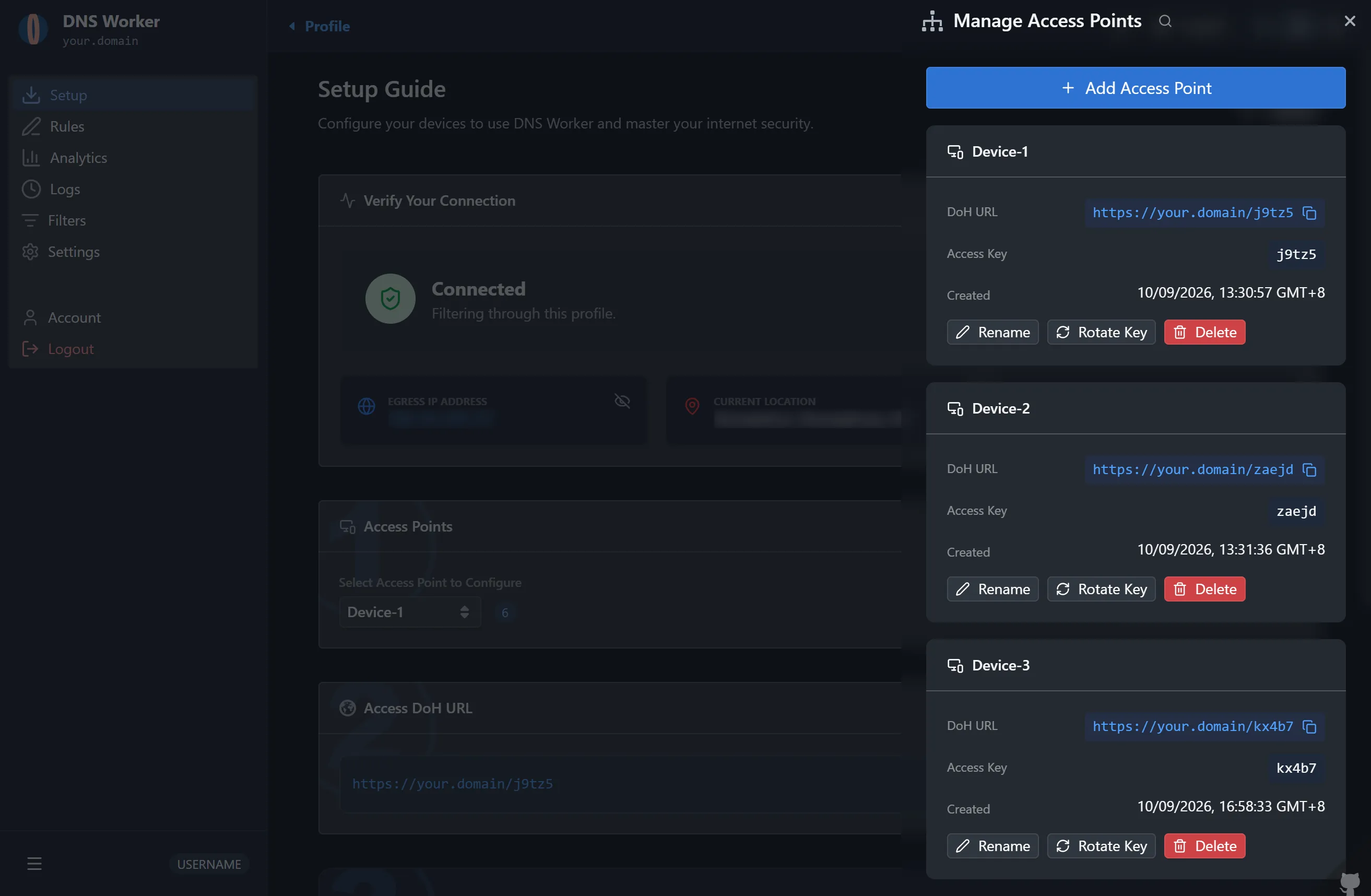
Step 1: Access the Dashboard
Section titled “Step 1: Access the Dashboard”- Open your DNS Worker Web Dashboard (e.g.,
https://dns.example.comorhttp://<server-ip>:10080). - Log in with your administrator credentials.
- In the sidebar navigation, click Profiles (接入点管理).
Step 2: Create a New Profile
Section titled “Step 2: Create a New Profile”- Click the + New Profile button in the top right corner.
- Enter a descriptive name for your profile (e.g.,
Phone-Mobile,Living-Room-Router,Kids-Tablet). - Click Create Profile.
┌────────────────────────────────────────────────────────┐│ Profile: Phone-Mobile ││ Profile Key: a8f9c2d14e... ││ Status: Active ││ Block Mode: Zero IP (0.0.0.0 / ::) ││ Logging: Enabled (Retention: 30 Days) │└────────────────────────────────────────────────────────┘Step 3: Fast Profile Switching
Section titled “Step 3: Fast Profile Switching”You can switch between multiple profiles instantly from any view in the Web Dashboard using the profile dropdown:
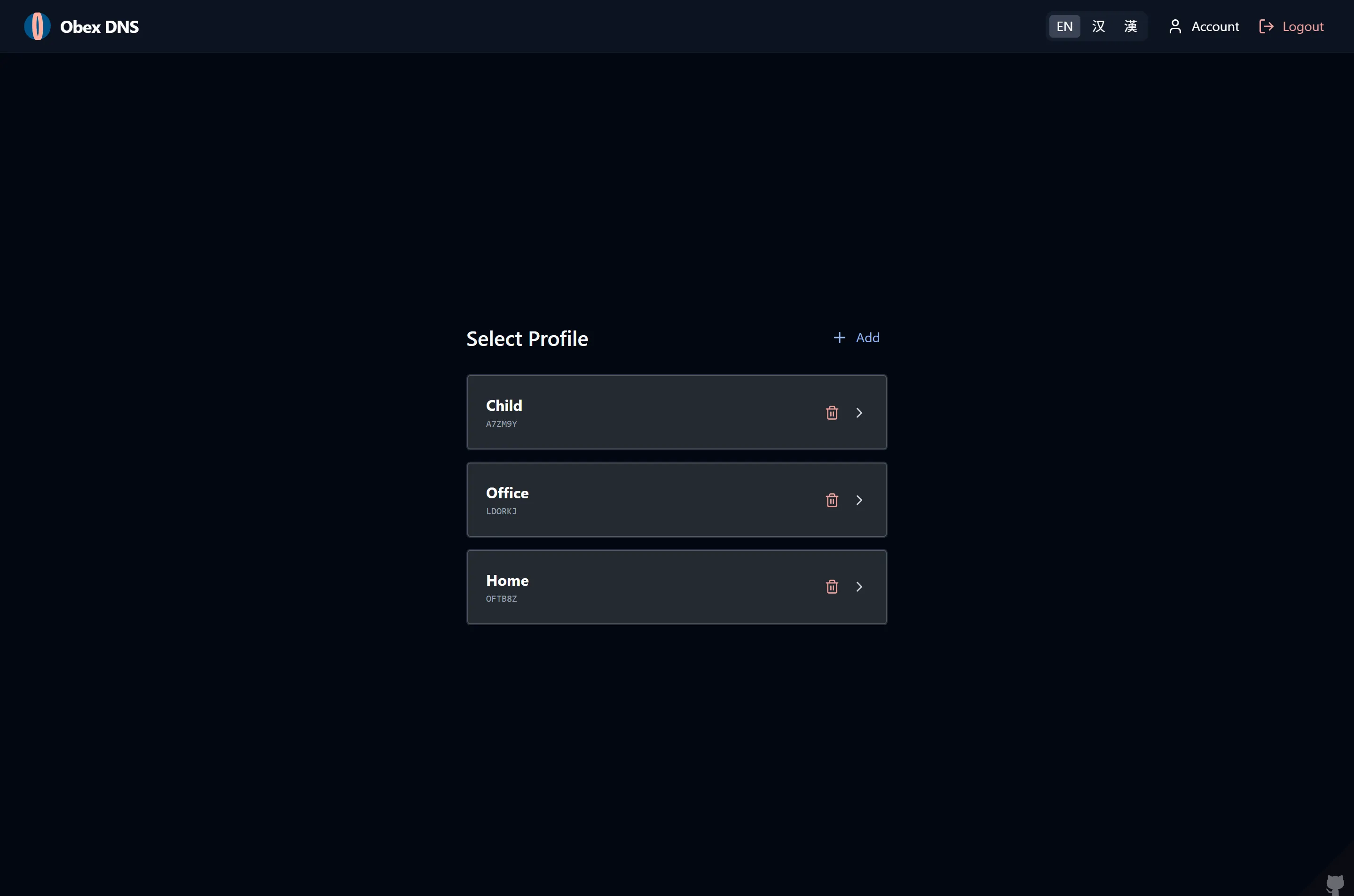
Step 4: Inspect the Generated Profile Key
Section titled “Step 4: Inspect the Generated Profile Key”Each newly generated profile is assigned a unique cryptographic Profile Key (e.g., a8f9c2d14e...). This key acts as the routing identifier in DoH paths and DoT SNI handshakes.
2. Protocol Matrix & Connection URLs
Section titled “2. Protocol Matrix & Connection URLs”DNS Worker supports all major modern encrypted DNS protocols alongside classic UDP DNS.
| Protocol | Endpoint Format | Applicable Environments |
|---|---|---|
| DoH (DNS over HTTPS) | https://<domain>/dns-query/<profileKey> |
HTTP/2 & HTTP/3 compatible; Browsers, Windows 11, iOS/macOS profiles, curl |
| DoT (DNS over TLS) | tls://<profileKey>.<dotDomain>:853 |
DoQ (RFC 9250) compatible; Linux systemd-resolved, Stubby, Android Private DNS |
| Android Private DNS | <profileKey>.<dotDomain> |
Android 9+ native Private DNS |
| Classic UDP (Do53) | udp://<server-ip>:53 |
Legacy routers, IoT devices, local testing |
[!NOTE] In Serverfull mode, DoT profile routing utilizes TLS Server Name Indication (SNI). When connecting via
<profileKey>.<dotDomain>, the server parses the sub-hostname during the TLS ClientHello before decrypting traffic, routing queries directly to the target profile. It is also compatible with QUIC-based DoQ transport.
3. Interactive Client Configuration Guide
Section titled “3. Interactive Client Configuration Guide”The Web Dashboard includes an interactive client setup walkthrough tailored to each operating system:
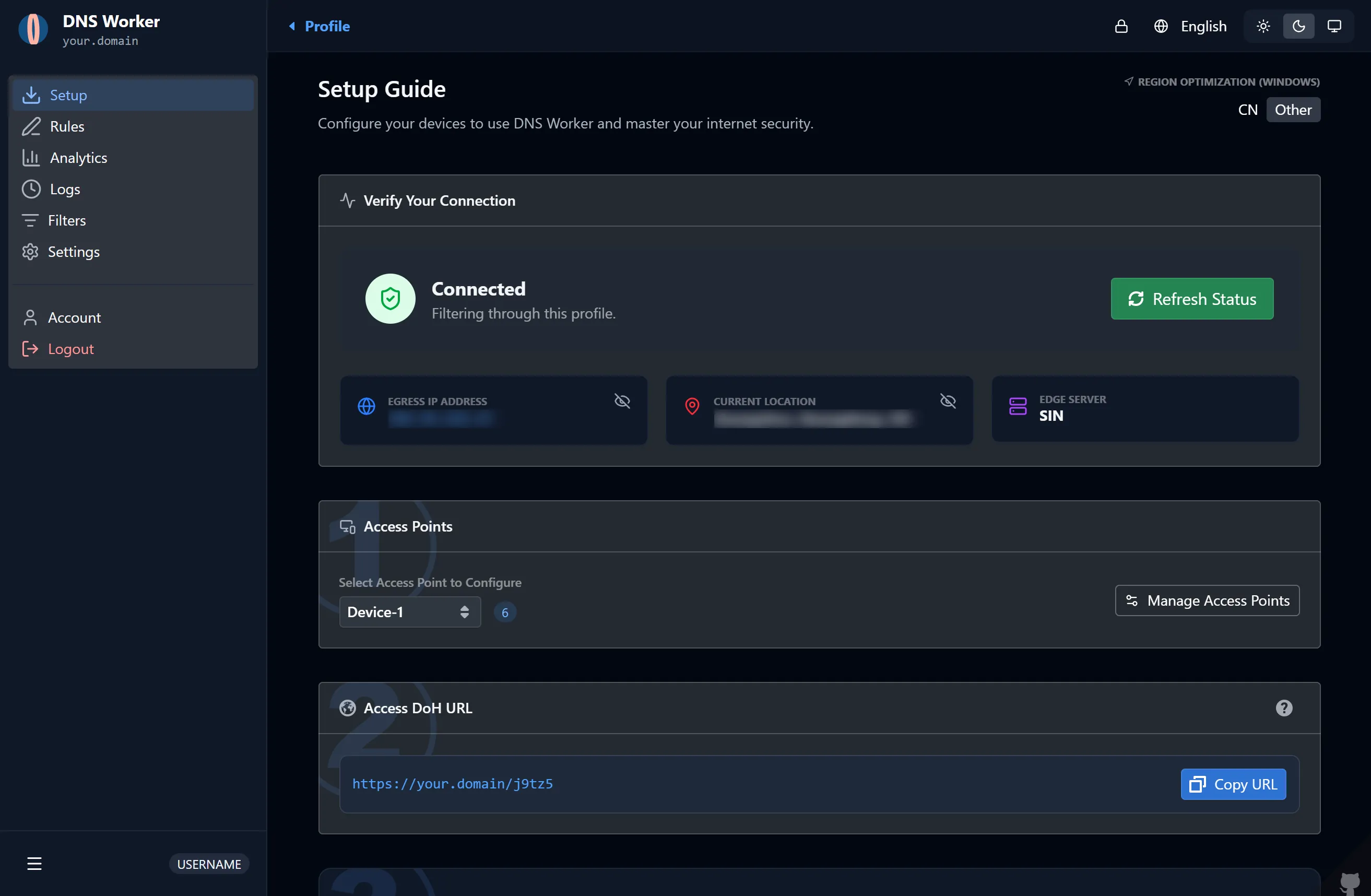
Android 9+ (Native Private DNS)
Section titled “Android 9+ (Native Private DNS)”Android features built-in support for DNS over TLS (DoT) via the Private DNS setting:
- Open Settings on your Android device.
- Navigate to Network & Internet → Private DNS (or search for “Private DNS”).
- Select Private DNS provider hostname.
- Enter your endpoint hostname:
Example:<profileKey>.<dotDomain>
a8f9c2d14e.dns.example.com - Tap Save. Android will automatically validate the TLS handshake.
Apple iOS / iPadOS / macOS
Section titled “Apple iOS / iPadOS / macOS”Apple operating systems natively support Encrypted DNS (DoH and DoT) through signed configuration profiles (.mobileconfig).
Method A: Web UI Mobileconfig Download
Section titled “Method A: Web UI Mobileconfig Download”- In the DNS Worker Web Dashboard, navigate to the target profile.
- Click Export Client Config → Apple Configuration Profile (.mobileconfig).
- Open the downloaded
.mobileconfigfile on your Apple device. - Go to Settings → Profile Downloaded and click Install.
Method B: Manual App Integration
Section titled “Method B: Manual App Integration”You can also use apps such as AdGuard, DNSCloak, or Shadowrocket:
- Select upstream type as DNS-over-HTTPS.
- Enter your profile DoH URL:
https://<domain>/dns-query/<profileKey>.
Windows 11 (Native DoH)
Section titled “Windows 11 (Native DoH)”Windows 11 natively supports DNS over HTTPS in system network settings:
- Open Settings (
Win + I) → Network & Internet. - Select your active connection (Wi-Fi or Ethernet).
- Under DNS server assignment, click Edit.
- Switch from Automatic (DHCP) to Manual, and turn on IPv4.
- In Preferred DNS, enter your DNS Worker server IP (or a local loopback/proxy IP).
- Under DNS over HTTPS, select On (automatic template) or enter your DoH template:
https://<domain>/dns-query/<profileKey>
- Click Save.
Linux (systemd-resolved)
Section titled “Linux (systemd-resolved)”For Linux systems using systemd-resolved (Ubuntu, Debian, Fedora, Arch):
- Edit
/etc/systemd/resolved.conf:[Resolve]DNS=<server-ip>#<profileKey>.<dotDomain>DNSOverTLS=yesDomains=~. - Restart
systemd-resolved:Terminal window sudo systemctl restart systemd-resolved - Test resolution using
resolvectl status.
Routers & Gateways (OpenWrt / AdGuard Home)
Section titled “Routers & Gateways (OpenWrt / AdGuard Home)”If you run a local gateway or router, you can forward all LAN DNS requests to your DNS Worker profile:
AdGuard Home Upstream:
Section titled “AdGuard Home Upstream:”In AdGuard Home Settings → DNS Settings → Upstream DNS servers, add:
tls://<profileKey>.<dotDomain>https://<domain>/dns-query/<profileKey>